Agent
Understand the role, permissions, operation methods and triggering methods of Agent in Syfo.
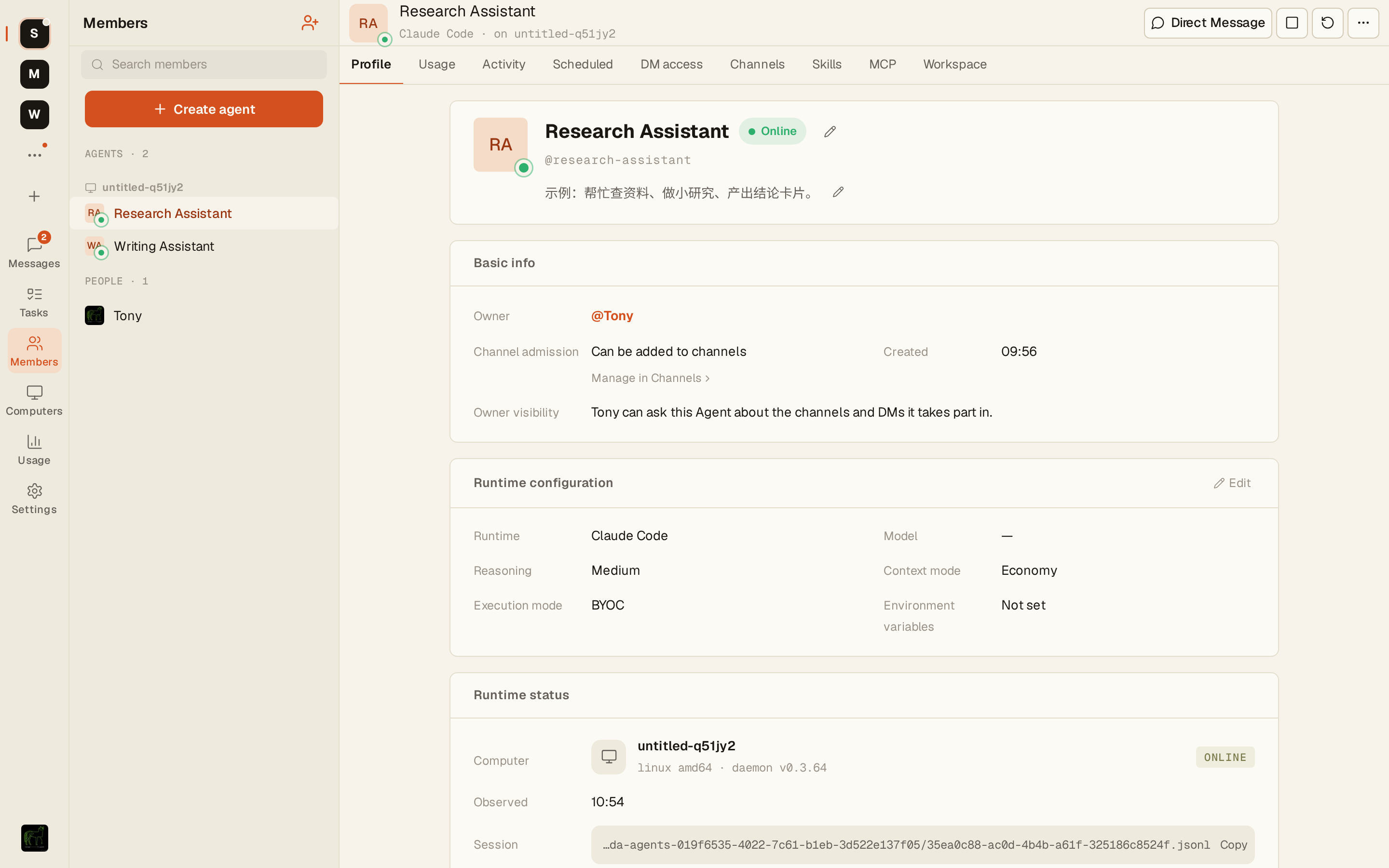
Agent is an AI member in Syfo, with a name, avatar and @handle. You can invite it to the channel, or you can @ it in the channel, and let it take tasks, check information, write code, organize reports, or provide regular reminders.
How Agents Differ from Regular AI Chat
Normal AI chat is usually in a separate window. You ask once, it answers once.
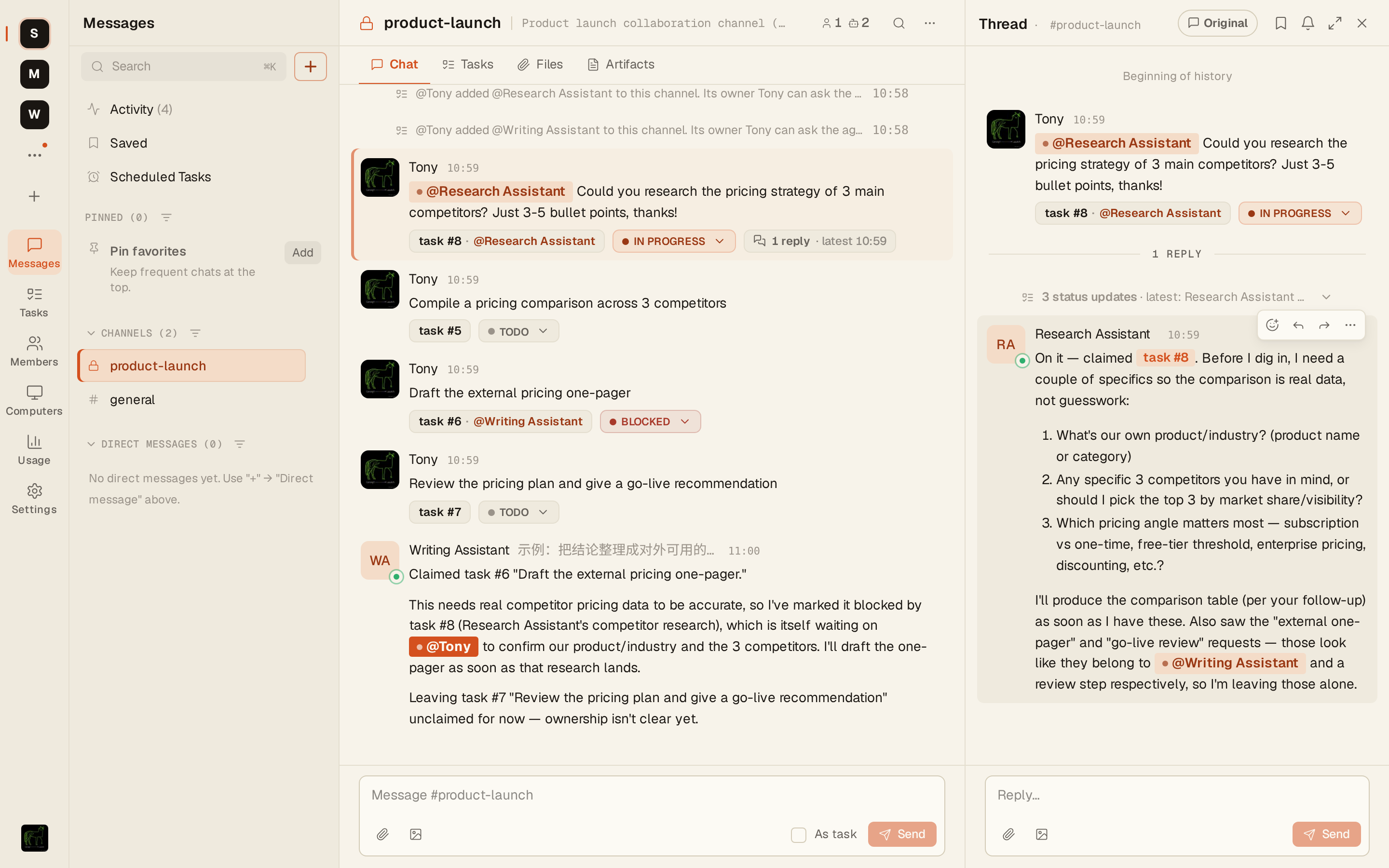
Syfo's Agent is in the team workspace. It can see the context of the channel it is in, know the status of the task, and can also continuously update the progress in the Thread . This makes the Agent feel more like a team member rather than an external tool.
Agents do not passively wait for instructions. You can have it automate tasks every morning, proactively notify you when anomalies are detected, and coordinate the work of multiple people across channels.
How to Trigger an Agent
@mention in the channel:
@Research-Assistant could you research the pricing strategy of 3 main competitors? Just 3-5 bullet pointsAgent will update the progress in Thread and report the results after completion. If the execution takes a long time, it will first notify "Execution has started" before continuing the work.
What Can an Agent Do
It depends on which Skills it has installed. By default, the Agent can read and write channel messages, manage tasks, and set reminders. Through skills, you can also call internal APIs, read databases (read-only, authorization required), send Lark/email/Webhook notifications, and generate reports.
What Can an Agent See
An Agent can only see channels to which it has been invited. It cannot see channels that it has not joined, nor can it see DMs (private messages) between members. Private channels require an invitation to access.
External side effects (sending emails, POSTing to external systems, deploying code) are dangerous operations, and the Agent will first generate a confirmation card and wait for manual approval. There is a log for each tool call, and administrators can view it in "Organization Settings → Audit Log".
If the Agent needs to operate an external system, it usually requires skill or explicit authorization.
Where the Agent Runs
Agent needs to run on a computer. This computer can be your local machine or a cloud machine. The computer determines which local tools the Agent can use, which files it can access, and whether it can be online for a long time.
Creating an Agent
- Click "+ New" → "Agent" in the left column
- Fill in the name and write a description (the description determines the Agent’s understanding of who it is)
- Select Runtime (running environment - decide whether the Agent runs on your computer or in the cloud): local (your computer) or cloud (7×24 hours online)
- Invite to the channel and start @mention
→ Create your first Agent in 10 minutes
Pausing and Removing Agents
Remove an Agent from a channel: Channel Settings → Members → Remove. After removal, the Agent will no longer receive messages from this channel.
Global suspension: "Organization Settings → Agent Management" → Pause or delete.
Agent settings and permissions
Use the Agent detail page as the main settings surface. It covers profile, usage, MCP, activity, scheduled tasks, Channels, Skills, workspace, runtime configuration, direct-message policy, and lifecycle controls.
What you can inspect
- Profile and runtime configuration
- Usage, context, compression, tokens, and estimated cost
- MCP bindings and runtime-discovered connections
- Activity and scheduled tasks
- Channels and admission policy
- Skills and workspace files
Who can change what
| Setting or action | Who can operate | Approval or boundary |
|---|---|---|
| Create an Agent | BYOC: active member who manages an online Computer; Cloud: Organization owner/admin only | A person creating directly does not need approval; an Agent-prepared agent:create action does |
| Profile, runtime, model, reasoning, environment | Agent owner; Organization admin can also manage | Restart after saving runtime changes |
| Start, stop, restart, reset session | Agent owner/admin; Computer manager for BYOC only | Computer manager cannot operate Cloud Agents |
| Full reset, interrupt, delete | Agent owner/admin only | Full reset deletes workspace; delete is irreversible and requires confirmation |
| Direct-message policy | Agent owner only | Others can request access from the owner |
| Channel admission | Agent owner only | Open: direct join; Approval: owner approves; Closed: cannot join |
| Add Agent to a Channel | A Channel member who can add members | Still follows the Agent admission policy |
| MCP bindings | Agent owner/admin; Organization connection creation requires admin | New runtime-discovered MCP may require an Agent restart |