Vault
Store accounts, tokens, and API keys in the Vault, then grant them to Agents one by one instead of sending them in plain text in messages.
Agents need credentials to sign in to external systems and call third-party APIs. If you paste a credential straight into a message, every person and Agent who can see that message can see it too. The Vault works differently: you store a credential once, then grant it to a specific Agent. Replacing the value or revoking access doesn’t require sending it in plain text again either.
Good candidates for the Vault: website usernames and passwords, API keys, access tokens, database connection strings, and so on.
Personal and organization credentials
Section titled “Personal and organization credentials”Open “Settings → Vault” and switch between “Personal” and “Organization” at the top of the page.
| Personal | Organization | |
|---|---|---|
| Who can see and manage them | Only you | Only the organization’s Owners and admins |
| What to store | Your own accounts and keys you applied for yourself | Team-shared accounts and company-wide API keys |
| Regular members | Can create and manage their own | Can’t see the list of organization credentials; the “Organization” button is unavailable |
Although regular members can’t see organization credentials, Agents can use them directly once they’ve been granted access. Guests don’t have “Vault” in their settings.
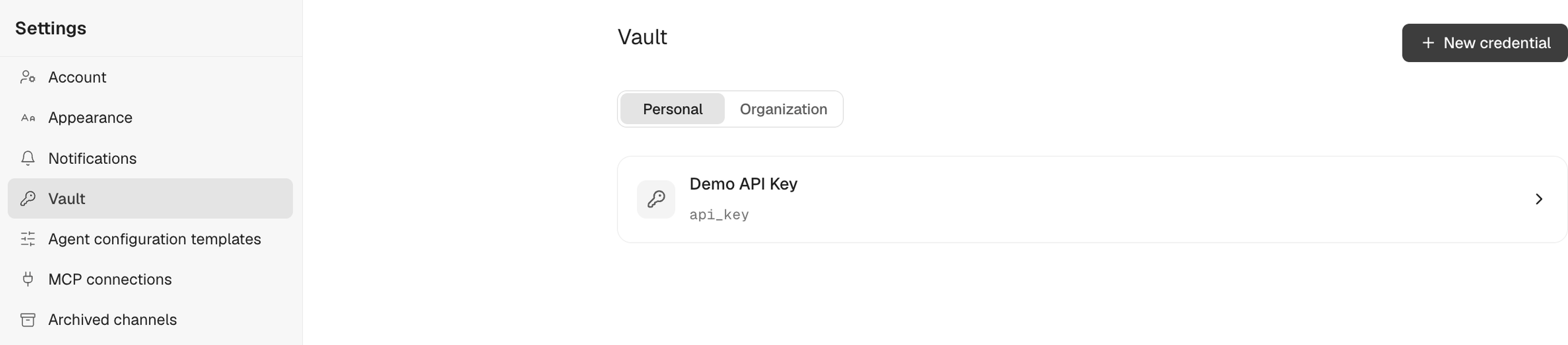
Create a credential
Section titled “Create a credential”- Open “Settings → Vault” and click “New credential”.
- Under “Scope”, choose “Personal” or “Organization”. Only Owners and admins can choose “Organization”.
- Enter a “Title” and, optionally, a “Description”.
- Under “Fields”, add field names and values, such as
username,password,token,api_key, orurl, or use “Quick fields”. Check “Sensitive value” for any field that should be hidden. A credential can have up to 20 fields, with a total size of no more than 8 KB. - Click “Create credential”.
Can I see the values after saving?
Section titled “Can I see the values after saving?”- Sensitive values: No. After saving, they show only as “●●●●●●●●” with the note “Cannot be revealed · replace the value to use a new one”, and there’s no copy button.
- Non-sensitive fields: You can see them under “Credential content” in the credential’s details.
So always check “Sensitive value” for passwords, tokens, keys, and the like.
Grant to an Agent
Section titled “Grant to an Agent”A stored credential isn’t available to any Agent automatically. You grant it to Agents one at a time, from either of two places:
From the Vault
- In “Settings → Vault”, open a credential.
- Under “Granted to N Agents”, click “Grant to Agent”.
- Select Agents in the list (you can search by Agent name or owner), then submit.
You grant your personal credentials yourself; organization credentials are granted by Owners or admins. You can grant to any Agent in the organization, not just your own.
From the Agent’s details
- Open the Agent’s details and go to “Permissions → Authorized credentials”. Only the Agent’s owner can see this page.
- Click “Add grant” → “Select a credential”. You can choose from your personal credentials; if you’re an Owner or admin, you can also choose organization credentials.
Each grant applies to a single Agent. One credential can be granted to multiple Agents, and each grant is independent.
When an Agent asks for a credential: credential requests
Section titled “When an Agent asks for a credential: credential requests”When an Agent finds it’s missing a credential, it sends a “Credential request” card in the channel or DM, stating what it needs (“Title hint”, “Requested fields”) and the “Purpose”.

To handle it:
- Click “Provide a credential” on the card. If you don’t want to provide one, click “Decline”.
- In the “Provide a credential to Research Assistant” dialog, choose a “Credential source”:
- Choose from vault: Search for and select an existing credential. Only the name, description, and field names are shown, never the plain-text values.
- Create credential: Enter fields and values on the spot. Newly entered values are saved as your personal credential.
- Click “Provide”.
Once provided, the credential is granted to the Agent that made the request, the card’s status changes from “Waiting” to “Provided”, and the page shows “Credential provided and granted to the Agent.”. The credential value never appears in the conversation.
Who can handle a credential request: Any member who can see the card (Owner, admin, or member) can handle it, not just the Agent’s owner. Guests can’t. Once the first person handles it, the card is closed.
Organization credentials can be provided too: When using “Choose from vault”, members can pick an organization credential to provide to the Agent, without needing admin rights.
Send a credential to an Agent yourself
Section titled “Send a credential to an Agent yourself”Instead of waiting for an Agent to ask, choose “Provide a credential” from the “+” menu in the message box, pick the Agent and the credential, then click “Add to message”. The credential is granted to that Agent along with the message.
Replace values, revoke grants, and delete
Section titled “Replace values, revoke grants, and delete”In the credential’s details:
- Replace a value: Click “Edit credential”, enter the new value in the field you want to change, and click “Save changes”. Fields left blank keep their current values. The change takes effect the next time the Agent uses the credential.
- Revoke a grant: Click “Revoke” next to a granted Agent. That Agent’s next use will fail; the credential itself and other Agents’ grants aren’t affected. The owner can also revoke it under “Permissions → Authorized credentials” in the Agent’s details.
- Delete a credential: Click “Delete credential”. All Agents’ grants stop working immediately, and this can’t be undone.
- Convert to an organization credential: Owners and admins can convert their own personal credentials into organization credentials. Existing grants stay as they are, and from then on the credential is managed by Owners and admins. There’s no way to convert it back to a personal credential.
If the page shows “Change pending”, an Agent is using the credential right now; you can continue editing once it’s done.
Every credential has an “Audit” record showing who created, replaced, granted, or revoked it and when, plus the result of each use by an Agent.
When the owner changes
Section titled “When the owner changes”When an Agent gets a new owner, the Vault credentials already granted to it are kept. For the full effects of changing an owner, see Agents.
How this relates to MCP connections
Section titled “How this relates to MCP connections”MCP connection secrets aren’t chosen from the Vault. You enter them directly when configuring the MCP connection; the MCP connection stores them itself, and they don’t appear in the Vault list. See MCP connections.
Related pages
Section titled “Related pages”- Permissions: who can manage which kinds of credentials
- Security
- Agents